
'%20fill='%23fff'/%3e%3c/clipPath%3e%3c/defs%3e%3cg%20id='logo_s'%20transform='translate(3331%2011131)'%20clip-path='url(%23clip-path)'%3e%3ccircle%20id='椭圆_3510'%20data-name='椭圆%203510'%20cx='15'%20cy='15'%20r='15'%20transform='translate(-3330%20-11130)'%20fill='%23ffffff'%20opacity='0'/%3e%3cpath%20id='联合_790'%20data-name='联合%20790'%20d='M17,22.938H3.615a3.694,3.694,0,0,1-2.759-.895A3.625,3.625,0,0,1,0,19.454V3.489C.031,1.194,1.2.087,3.689.005H13.43L13.492,0V3.98a3,3,0,0,0,3,3h4.193V19.454c-.025,1.589-.662,3.485-3.554,3.485ZM5.8,16.588a.88.88,0,0,0,.879.879H14.1a.879.879,0,0,0,0-1.759H6.681A.88.88,0,0,0,5.8,16.588Zm0-3.836a.88.88,0,0,0,.879.879H14.1a.88.88,0,0,0,0-1.759H6.681A.881.881,0,0,0,5.8,12.752Zm0-3.837a.88.88,0,0,0,.879.879h4.783a.879.879,0,1,0,0-1.759H6.681A.88.88,0,0,0,5.8,8.915ZM17.031,5.5a2,2,0,0,1-2-2V.365a1.9,1.9,0,0,1,.3.235c.564.547,2.329,2.146,3.5,3.2l.068.061.886.8a2.8,2.8,0,0,1,.636.834Z'%20transform='translate(-3325.342%20-11126.47)'%20fill='%23ffffff'/%3e%3c/g%3e%3c/svg%3e)


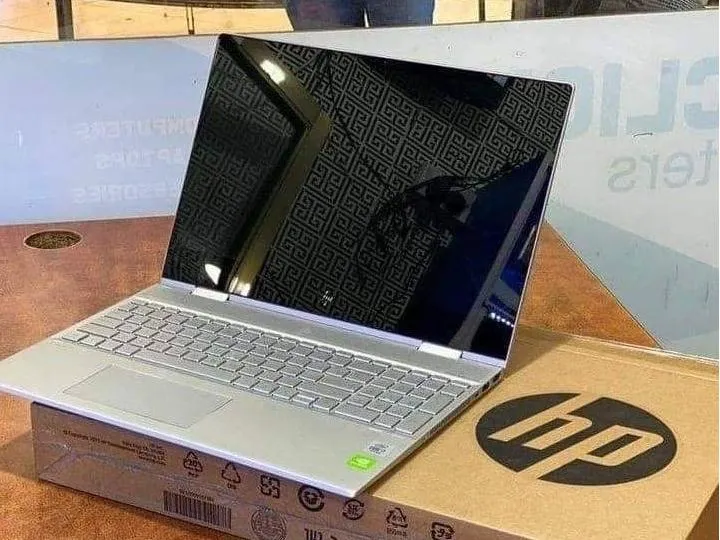 Buying a second-hand computer in 2025 can save you a ton of money — if you know what you’re doing. But if you’re a beginner, the used-computer market is filled with pitfalls: misleading specs, dying batteries, fake SSDs, overheated CPUs, refurbished laptops disguised as “almost new,” and sellers using confusing tech jargon to pressure buyers into bad deals.
This guide focuses on realistic traps beginners fall into and simple ways to avoid them. No fluff. No brand worship. Just practical survival rules to help you pick a solid used machine without overspending or getting scammed.
1. Rookie Mistake: Only Looking at the Processor (CPU)
Most beginners check only the CPU model — usually something like “i5 vs i7” — and ignore everything else. This is one of the most common traps.
Why This Is a Problem
CPUs aren’t the only thing that determines performance. A 2020 i5 can outperform a 2015 i7. Many used laptops labeled as “high-end” hide slow RAM, outdated SSDs, weak integrated GPUs, or thermal issues.
How to Avoid the Trap
- Prioritize generation, not just the model name.
* Intel: Look at the number after “i5/i7” (e.g., i7-1165G7 → 11th gen, good; i7-6700HQ → outdated).
* AMD: Ryzen 4000, 5000, 7000 series are strong; older ones are not worth buying.
- Check these specs first:
SSD > RAM > CPU > GPU (if needed).
- For general use in 2025, the minimum baseline:
* 8GB RAM (16GB preferred)
* 256GB SSD
* Intel 10th gen+ or Ryzen 4000+
2. Rookie Mistake: Not Checking Battery Health
Laptop battery health determines whether you’ll actually enjoy using the device. Many used laptops have batteries at 40–60% health, which means you’ll get maybe 30–60 minutes of usage.
Why Sellers Hide This
Batteries degrade fast, and replacements on certain models (MacBooks, ultrabooks, gaming laptops) can cost $80–$300.
How to Avoid the Trap
- Always check battery cycles:
* Windows: `powercfg /batteryreport`
* macOS: Apple Menu → System Report → Power → Cycle Count
- Healthy battery guidelines for used devices:
* Under 250 cycles = good
* 250–500 = acceptable
* 600+ = expect to replace soon
- If buying online, ask for a screenshot of the battery report before paying.
3. Rookie Mistake: Ignoring the SSD Type (Fake SSDs Are Everywhere in 2025)
Beginner buyers often check only the SSD capacity, not the type. In 2025, fake SSDs are extremely common in the used market — especially cheap Chinese brands rebranded as “new 1TB SSD.”
Why This Matters
Fake or ultra-cheap SSDs:
- die suddenly without warning
- corrupt data
- perform slower than a mechanical hard drive
- throttle under heat
How to Avoid the Trap
- Stick only to trusted SSD brands:
Samsung, WD, Crucial, SK hynix, Kingston (NV2 or better)
- Ask the seller to show:
* CrystalDiskInfo screenshot
* SSD health %
* model name
- If the SSD has no brand, or the seller refuses?
Walk away immediately.
4. Rookie Mistake: Not Checking Temperature & Fan Noise
Overheating is the silent killer in second-hand laptops. Many gaming or thin-and-light laptops run hot after years of dust buildup and dried thermal paste.
Signs of Trouble
- Fan sounds like a jet engine
- Laptop gets hot even on idle
- Performance drops after 10–20 minutes of usage
What To Do Before Buying
Ask for a temperature test using:
- HWInfo (Windows)
- Macs Fan Control (Mac)
- Cinebench R23 for 5 minutes
Acceptable temps under load:
- Intel/AMD notebook CPU: under 90°C
- Gaming GPU: under 82°C
- MacBook: 95°C bursts OK, but not sustained
If temps are too high, you may need a repaste ($30–$80) or cleaning.
5. Rookie Mistake: Falling for “Upgraded RAM/SSD” With Cheap Parts
Many sellers install the cheapest RAM or SSD to “look premium.”
Example listing:
“Upgraded 16GB RAM, 1TB SSD!!!”
Reality:
- RAM is mismatched or unstable
- SSD is low-quality QLC that dies fast
- System crashes randomly
How to Avoid It
- Ask for the exact RAM brand & speed
- Ask for the SSD model number
- For dual-channel RAM, modules must match
- Avoid laptops with generic RAM brands like:
* V-Color
* Kimtigo
* Gloway
* Netac (only OK for SSDs, not RAM)
6. Rookie Mistake: Not Testing the Display (Panels Hide Many Problems)
Displays on used laptops often have flaws buyers don’t notice until too late.
Common Hidden Issues
- yellowish tint (aging backlight)
- dead pixels
- uneven brightness
- screen flicker
- ghosting
- burn-in (especially OLED laptops)
How to Test
Use full-screen color tests (white, red, blue, green, black).
Check brightness uniformity in a dark room.
Move a window quickly to test ghosting.
7. Rookie Mistake: Buying a Thin Laptop for Heavy Work
Beginners often think a thin laptop with an i7 is automatically powerful. Not true.
Why This Is Wrong
Thin laptops thermal-throttle fast. Many are weaker than older, thicker laptops.
Example:
A 2019 gaming laptop with an i5 may outperform a 2023 ultrabook with an i7 in sustained workloads.
If You Need Power (Editing, Designer Work, Coding)
Choose:
- Ryzen 7 4800H / Intel 10th–12th gen H-series
- 45W CPUs
- Proper cooling
- Dedicated GPU if needed
Avoid:
- Y-series Intel
- U-series when doing heavy tasks
- Fanless laptops
8. Rookie Mistake: Not Checking Keyboard, Ports, and Hinges
These physical components are expensive and annoying to repair.
Things Beginners Forget to Test
- keyboard double-clicking
- sticky keys
- USB ports not working
- loose power jack
- wobbly hinges
- cracked chassis
Repair Costs in 2025
- keyboard replacement: $40–$120
- hinge repair: $60–$180
- motherboard USB port fix: $70–$150
If the chassis is cracked?
Run.
A cracked hinge mount usually means death eventually.
9. Rookie Mistake: Not Checking Warranty or iCloud/BIOS Lock
A locked laptop = a brick.
For MacBooks
- Must check Activation Lock
- Ask for “Erase All Content and Settings” during meetup
- Must log out of iCloud
For Windows
Check for:
- BIOS password
- BitLocker lock
- stolen device flags
If the seller refuses?
Walk away immediately.
10. Rookie Mistake: Ignoring the GPU’s True Condition (Especially For Gaming Laptops)
Gaming laptop GPUs degrade faster because of heat and VRAM stress.
Common Hidden Problems
- VRAM errors
- GPU throttling
- GPU fan death
- solder cracks
How to Avoid the Trap
Run these simple tests:
- FurMark (5 minutes)
- 3DMark Time Spy
- MSI Afterburner stress test
Temps over 90°C = red flag.
Stuttering or screen artifacts = don’t buy.
11. Rookie Mistake: Trusting “Refurbished” Without Proof
In 2025, “refurbished” is one of the most misused words in the used market.
Sellers call anything refurbished:
- cleaned fans
- replaced SSD
- wiped Windows
Real refurbished means:
- official manufacturer program (Dell Outlet, Apple Certified Refurbished)
- full hardware testing
- replaced battery
- new casing (sometimes)
Private sellers rarely do real refurbishing.
Avoid unofficial refurbished unless:
- seller provides receipts
- parts list is clear
- tests are provided
- you can physically inspect the laptop
12. Rookie Mistake: Buying the Wrong Laptop for Your Use Case
People often buy a gaming laptop when they only need something for Zoom.
Or they buy a thin MacBook Air but want to edit 4K video.
Use-Case Recommendations (2025)
General Office / School
- Intel 10th gen+ i5
* Ryzen 4000+
- 8–16GB RAM
- 256–512GB SSD
Recommended used models:
- Dell Latitude
- Lenovo ThinkPad T/X series
- HP EliteBook
Gaming
- RTX 2060/3060 or better
* Ryzen 4600H+ or Intel 10th gen H+
- Good cooling
Good used gaming models:
- Lenovo Legion
- ASUS TUF / ROG
- Acer Nitro (newer models only)
Video Editing / Design
- 6–8 core CPU
- 16GB+ RAM
- Powerful GPU or M1/M1 Pro
Best used picks:
- MacBook Pro M1/M1 Pro
- Dell XPS 15
- HP Omen 15 (with good GPU)
13. Rookie Mistake: Not Checking the Seller's Reputation
The biggest difference between a good deal and a scam is the seller.
Red Flags
- too low price
- no testing allowed
- blurry photos
- cash only
- meeting in isolated places
- refuses video call
- refuses serial number check
How To Stay Safe
- Meet in public
- Test everything
- Ask for receipts
- Compare serial number with online warranty database
- Avoid Facebook sellers with no profile history
14. Rookie Mistake: Paying Too Much for Old Hardware
In 2025, many sellers overprice older models because buyers don’t understand depreciation.
Example:
- A 2015 MacBook Pro for $400 → terrible deal
- A 2017 gaming laptop with GTX 1050 for $350 → not worth it
- A 2018 MacBook Air for $500+ → overpriced
Price Benchmarks (2025 Used Market)
Good Deals
- MacBook Air M1 → $450–$600
- Dell Latitude 7410 → $250–$350
- ThinkPad T14 (Ryzen) → $300–$450
- RTX 2060 laptops → $400–$550
Avoid Anything Older Than:
- Intel 8th gen
- GTX 1650
- Mac pre-2018 (Intel thermal issues)
15. Rookie Mistake: Ignoring Battery Swelling and Physical Damage
Swollen batteries are dangerous and very common in older laptops.
What To Look For
- trackpad bulging
- keyboard popping up
- bottom panel not closing
- laptop wobbling on a flat surface
If you see ANY of these — do not buy the laptop.
16. A Simple Checklist to Verify Before Paying
Here is a quick 2-minute checklist beginners can use:
Essential
✔ Check SSD brand & health
✔ Check RAM type & size
✔ Test battery cycles
✔ Test keyboard & ports
✔ Check for screen defects
✔ Run quick CPU/GPU stress tests
✔ Check temperature under load
✔ Verify serial number
✔ Confirm no BIOS/iCloud lock
✔ Inspect chassis & hinges
Optional But Useful
✔ Check speaker quality
✔ Check webcam
✔ Test Wi-Fi speed
✔ Inspect charger authenticity
If the seller refuses ANY test, walk away.


